
Reports
Reports are what Formuvia makes out of what is in the database: a list of data, a job over that data, or a document handed over as a PDF. They are reached through Administration / Reports.
A report always belongs to a group. The group is there for two reasons: it keeps the reports tidy, and it says who may read what is in it — a group carries one role, and only a user with that role gets the reports of that group.
Groups
The list shows the name of the group, the role that goes with it and its icon. It is the same list as everywhere in Formuvia: search, sorting, pages, Excel export, and ⋯ on the row with Reports, History and Delete. The name of a group can also be changed straight in the list — Edit mode in the toolbar, or a double click on the cell; the icon cell opens the same picker as the form.
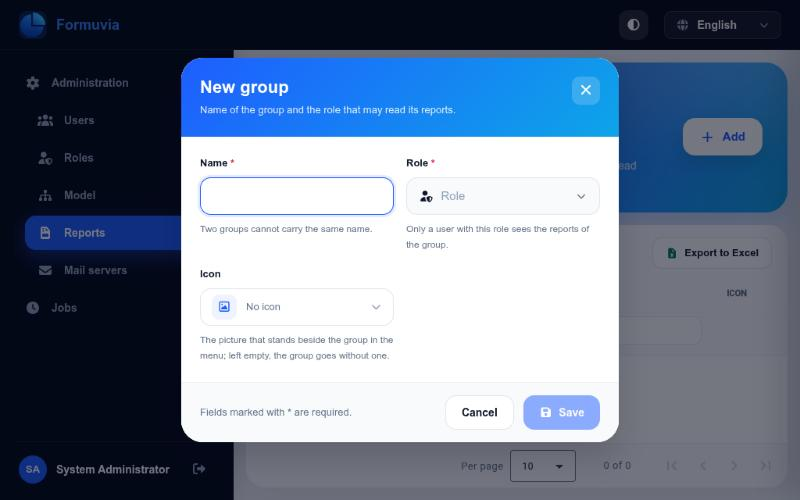
Adding a group
Add asks for:
- Name — what people read above the reports of the group. Two groups cannot carry the same name; Formuvia says so when a name is taken.
- Role — the role that may read the reports of the group. Roles are kept in Users and roles.
- Icon — optional, chosen from a searchable list: the picture that stands beside the group in the menu, where its reports are offered.
The name and the role are required. Picking the role is the whole of the access rule: whoever has that role gets the reports of the group, whoever does not never sees them.
Editing and deleting a group
⋯ → Edit opens the same form; the name, the role and the icon can be changed whenever, and changing the role changes who gets the reports from that moment on. ⋯ → Delete removes the group together with the reports in it.
Reports of a group
⋯ → Reports on a group opens the reports of that group. Back in the header leads to the list of groups again, exactly as it was left — the same page, the same filters and sorting, with the group gone into still marked.
The list shows the type, the name and the description of every report of the group. Add and Edit open its form, and ⋯ on the row holds Parameters, History and Delete. The name, the description and the query itself can also be changed straight in the list, the same way as in the groups; for a longer query the form is the more comfortable place.
What a report can be
The type decides what the report does, and the form follows it:
| SELECT query | one SELECT; the report shows the rows it returns |
| UPDATE query or procedure | one CALL, UPDATE, INSERT or DELETE; the report does the job and reports how it went |
| Jasper report | a report compiled in Jaspersoft Studio (.jasper), handed over as a PDF |
Adding a report
- Name — what people read in the list of the group. Two reports of the same group cannot carry the same name.
- Type — one of the three above, and it is chosen here, as the report is added. A saved report only shows its type: it keeps either a query or a file, and the one is not swapped for the other afterwards.
- Icon — the picture that stands beside the report in the menu, picked from the same searchable list as the icon of a group. It can be left empty.
- Description — optional, a line about what the report is for.
- Query — asked for only by the first two types. It is read as it is saved: it has to be a single statement, of the kind the type allows, and nothing may stand after the semicolon. A query that cannot be read at all, one of the wrong kind, or a second statement smuggled in after the first — each is refused with an explanation.
- File of the report — asked for only by a Jasper report, and required for a new one: the report compiled in Jaspersoft Studio, with the
.jasperextension. A file of another extension is said to be wrong on the spot; the one that is taken goes to the server the moment it is chosen and is read as the report is saved, so a file that is not a compiled report is refused then.
A Jasper report has no query, and the first two types keep no file. Editing a Jasper report without choosing a file keeps the one it holds — the form says so — and a new file takes the place of the old one.
Parameters of a report
⋯ → Parameters on a report opens the parameters of that report. Back in the header leads to the reports of the group again, with the report gone into still marked.
A parameter is what the report asks for before it runs: the date to look from, a customer, a branch. In the query it stands as :code, where the value itself would otherwise stand:
select * from invoice where date >= :date_from and customer = :customerThe list shows the order, the data type, the code, the name and whether the value is required. Add and Edit open the form, ⋯ on the row holds History and Delete, and everything can be changed straight in the list as well.
- Code — what the parameter stands under in the query, without the colon. For a query report only small letters, digits and underscore are allowed, and it must begin with a letter — the same rule as for the code of a column in the Model; and the code has to really stand in the query, because a parameter that does not appear in it could never be filled in. For a Jasper report the code is the name of a parameter of the
.jasperfile instead, written exactly as it stands there, capital letters included; a parameter the compiled report does not declare is refused. Two parameters of one report cannot carry the same code. - Name — what the person running the report reads above the field.
- Data type — what kind of value is asked for: text, number, date, yes/no. A file cannot be asked for, and neither can a link to a record: such a value is not handed over as an identifier. A parameter that picks a record out of a codebook is therefore asked for as text — its list of values gives the identifier as it is — and in the query it is said what it is:
customer = cast(:customer as uuid). - Order — the order in which the parameters are asked for. The first free number is offered, and two parameters of one report cannot share it.
- Optional — the report can be run without that value.
- Default value (SQL) — a
SELECTquery with exactly one column; its value is offered in the field when the report is asked for, for exampleselect now(). It can be left empty. - List of values (SQL) — a
SELECTquery with exactly two columns: the first is the value that gets used, the second is the text seen in the list, for exampleselect id, name from partner order by name. Empty means a free entry.
Both queries are read as they are saved, by the same rule as for a column in the Model: they have to be a SELECT, without *, with exactly one and exactly two columns.
A parameter the user may leave empty has to be written into the query with its type said out loud, because an empty value on its own tells the database nothing about what it is:
select * from invoice
where (cast(:date_from as date) is null or date >= :date_from)
Written that way the report runs both with a date and without one. Without the cast the database refuses the query the moment the field is left empty.
A Jasper report has no query, so its parameter is looked for in the .jasper file itself: a parameter the compiled report does not declare is refused, and the parameters JasperReports sets by itself do not count. The default value and the list of values work the same way for it as for a query report. In the file, a parameter that carries an identifier is declared as Object and said out loud in the query of the report, the same way as everywhere else: cast($P{customer} as uuid).
Jobs: a report that runs by itself
A report does not have to wait for somebody to ask for it. In the row menu of a report stands Jobs, and it leads to the list of the jobs of that report: every job says when the report runs and what happens to it when it does. How those jobs have been faring — every one of them, over every report — is read on the Jobs page, and a job can be run by hand from there.
Add opens the form of a job. The first thing chosen is what the job does, and the form then asks only for what that kind of job needs:
- Send by mail — the report goes to one or more addresses. It asks for the address it goes to, the subject, the body, and whether the report stands in the mail itself or goes along with it as a file. A Jasper report cannot stand in the mail itself, so for it only the file is offered.
- Write into a file — the report is written into a file on the server. It asks for the folder and the name of the file; the folder has to be one the server may write into.
- Only run — the report does its work over the data and nothing comes back. Only a report of the UPDATE query or procedure kind can be run that way, and a report of that kind cannot do anything else.
Whenever a file is made — as the file itself or as the attachment of a mail — the kind of file is chosen: Excel, or CSV where the sign between two columns is given as the separator. It is only asked for then, and only for a report that is not a Jasper one: a Jasper document is always drawn as a PDF, a report that stands in the mail itself goes out as HTML, and a job that only runs the report makes nothing, so in all three there is no kind of file to choose.
The rest is the same for every job:
- Name — the job stands in the scheduler under it, so two jobs cannot share it. It is given when the job is entered and is not changed afterwards: the scheduler keeps the job under the name it was given, and a renamed job would stay there under the old name and keep running beside the new one. A job that needs another name is switched off and entered anew.
- Body — the text that goes with the report, written in the editor: bold, italic, a heading, a list, a link, alignment. It is sent as HTML, and whoever already has HTML of their own switches to the
HTMLview and writes it there. - Mail server — the one entered under Administration / Mail servers. A job that sends the report by mail cannot be saved without it, and every other job asks for it too, because the word about an error goes out through it.
- Address for errors — where word is sent when the job does not go through. Left empty, the error is only written down; filled in, the mail server has to be chosen as well, or there is nothing for that word to go through.
- Role — the role tied to the job.
- On — only a job that is on is scheduled; switching it off stops the job without deleting it.
- Only when there is data — the job is left out when the query of the report gives no rows. It is offered only for a report of the SELECT query kind, because only such a report has rows to count.
A job that is not wanted for a while is switched off by On and stays as it is; Delete in the row menu removes it for good and takes it out of the scheduler at the same time.
When it runs
Under the fields of the job stands the schedule, and it is read from top to bottom: minutes, hours, day of the month, month, day of the week, year. Every one of the six is set in one of three ways:
- Any — every value of that unit. Minutes at any mean every minute while the hours are at any too; the moment an hour is chosen they mean the top of that hour, because a job set to 8 h is meant to run at 8, not sixty times between 8 and 9.
- Every n-th — a step: every 5 minutes, every 6 hours, every 3 months. The step is counted from the beginning of the bigger unit, so a step of 5 over the minutes means 0, 5, 10 and so on to 55, and it starts again at the top of every hour.
- Pick — only the values ticked. Minutes and hours are ticked as numbers, the month and the day of the week by name. Beside the ticks stand the usual choices — All, None, Every quarter of an hour, Working days, Weekend and so on — and they replace what is ticked, they do not add to it.
A unit shows what it is set to beside its name, so the whole schedule is read without opening anything. The day of the week has no step: it is either every day of the week or the days ticked.
The day of the month and the day of the week cannot be set together. A job either runs on days of the month (the 1st and the 15th) or on days of the week (every Monday) — the scheduler takes only one of the two. So the moment one of them is set, the other stays at any and says why; letting the first one go gives the other one back.
At the bottom stands the expression the schedule comes down to, the way the scheduler reads it:
0 */5 8,16 ? * 2,6 *Read from the left: at second 0, every 5 minutes, at 8 and at 16 hours, on no particular day of the month, every month, on Monday and Friday, every year. The ? stands where a day is left to the other field.
Running a job from the outside
A job is also run by somebody who is not in the application at all. Webhook in the row menu of the job opens its keys: with a key, another program — the one that makes the data, a scheduler of its own, a button in a third application — runs this job whenever it needs to, without logging in.
The dialog says how the call is made, and it holds for every key of that job: POST to the address of the key, with the key in the header as Authorization: Bearer <key>, and no body. Every key has an address of its own, so one key is taken away without touching the others, and beside each stands a note of what it is for. The whole of it, together with what a run from the outside means, is on the Jobs page.
Running a report
Every report is in the menu, under the name and the icon of its group, with its own icon beside it when one was chosen: whoever has the role of the group sees its reports there, and nobody else does. The page of a report has two sides: what the report asks for on the left, what came back on the right.
On the left stand the parameters, in the order they were given. A parameter with a default is already filled in with it, a parameter with a list of values is chosen from that list, a date is picked from the calendar, and yes/no is chosen as yes or no. A parameter that may not be left out carries a red star, and until every one of them is filled in the button stays off; one marked Optional can be left empty and is then sent as nothing.
Show then runs the report, and what the button says follows the kind of the report:
- SELECT query — the rows the query returns appear on the right. They all come at once: there are no pages, and the order is the one the query itself gives. Under a column of decimal numbers stands its sum, over all the rows that came back. Export to Excel gives the same rows as an
.xlsxfile; the file is made on the server, out of the same values of the parameters. - UPDATE query or procedure — the button says Run, and the report does its work over the data. There is nothing to show, so the right side only says that the report has been run.
- Jasper report — the server fills the compiled
.jasperfile with the values entered and makes a PDF out of it; the document opens on the right in the same reader as everywhere in Formuvia, with paging, zoom, printing and saving of its own. Show again makes the report over the new values, and the document that comes back takes the place of the one on the right.
On a phone the two sides go one under another: first what the report asks for, then what came back, and every row of the answer is a card with the name of the column beside each value. A PDF stands under the parameters the same way, as tall as the screen allows.
A report over one record is something else
The reports on this page stand on their own: they are chosen from the menu and made over whatever the report itself reads from the database.
A report made over one record of one table — an invoice out of the invoice that is open, a card of the customer being looked at — is not set here. It is put on the table itself, in the Model; see Reports of a table.