Working with tables
Every table screen in Formuvia works the same way. Learn it once and it applies to all of them: Users, Roles, and the subtables you reach from a row's ⋯ menu.
Tables from the Model
Tables you define yourself in the Model appear in the menu and open the same screen as the built-in ones, so everything on this page holds for them too — editing straight in the list included. What they have on top of it — procedures, reports over a record, the entry template — is described below, where it comes up.
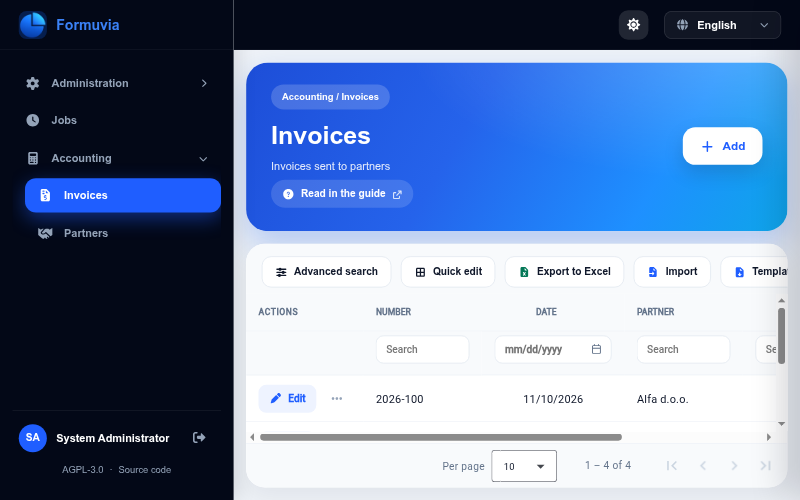
A table screen has three parts: a header with the title, the Add button and Read in the guide, which opens this page, a toolbar with search and export, and the list itself with a paginator at the bottom.
Finding a record
Filtering by column
Under each column header there is a small search field. Type in it and the list narrows as you go. Filters on several columns work together — a row has to match all of them.
The broom icon at the right end of that row clears every filter at once.
Advanced search
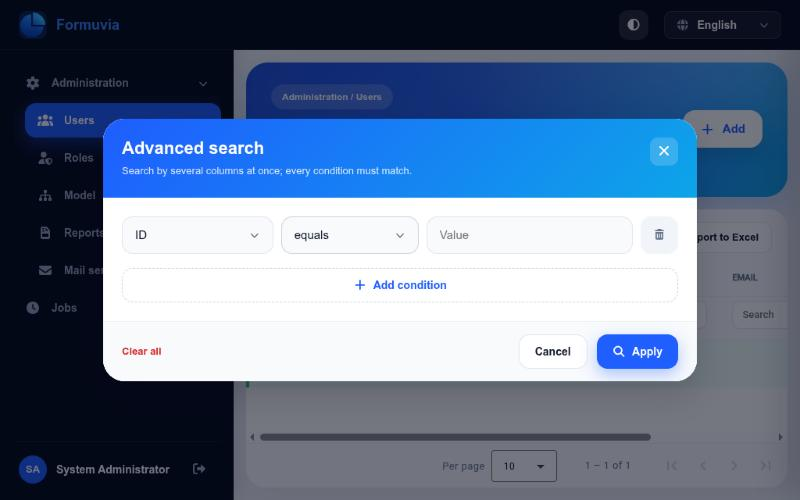
Advanced search in the toolbar is for questions the column fields cannot answer: a date range, everything that is empty, everything that does not equal something.
Add a condition, pick the column, pick what to compare and enter the value:
| Condition | Matches |
|---|---|
| equals / does not equal | an exact value |
| contains / starts with / ends with | a part of the text |
| less than / greater than | and their or equal variants, for numbers and dates |
| between | a range — two fields, From and To |
| is empty / is not empty | records with nothing stored in that column |
All conditions must match at once. Apply runs the search and the conditions stay visible as chips in the toolbar, so you can see what is filtering the list; the × on a chip removes that one condition, and Clear all removes them all.
Sorting and paging
Click a column header to sort by it, click again to reverse. A column that points at a codebook, and a column holding a file, are not sorted: they hold an identifier, not the text you see, so sorting by them would order the list by something invisible. At the bottom you choose how many rows fit on a page and move between pages.
Filtering, sorting and paging all happen on the server, so a table with a lot of rows stays as fast as a small one.
Adding and changing data
What you see depends on your roles
A table from the Model is opened with four separate rights: viewing, adding, changing and deleting. Without the right to add, the Add button is not there; without the right to change, the pencil on a row becomes an eye and the record opens as a form you can read but not edit; without the right to delete, the ⋯ menu has no Delete.
Through the form
Add in the page header opens the entry form. Edit on a row opens the same form with that record in it. Fields marked with * have to be filled in before the form will save.
The Save button carries a small tab on its right. It always holds Save and stay — the record is stored and the form stays open, filled in again with what the server stored, so a long form can be saved as you go and a new record simply turns into an existing one. When the table has subtables, the tab holds one entry per subtable as well. On a new record it reads Save and open: … — the record is stored and the subtable opens with it as the parent, so the header and its lines are entered in one move. On an existing record it reads Open: …, because the record is already stored and you may only want to look at it and step into its lines; if you changed something on the form first, you are told those changes will not be saved.
If the table has procedures, the tab holds those as well, as Save and run: …. It asks first, as in the list, because a procedure changes the record and that cannot be taken back. The record is stored first, so the procedure works on what stands on the form and a new record exists by the time it runs; when it is done the form is filled in again with what the procedure left behind, and stays open. Procedures are in the tab only while the record may be changed — a record you are only looking at has no Save at all. The same procedures stand in the ⋯ menu of the list, for a record you do not need to open.
The reports of the table are there too, as Save and print: …. Nothing is asked first, because a report changes nothing: the record is stored, the report is made over it as it was just saved, and the PDF opens in the reader over the dialog, which stays open behind it.
The labels on that form come from the server, in the language you chose, so the form and the table always use the same words for the same thing.
A value picked from a list is cleared with the × at the right end of the field — that works in the form, in the table and in the filters alike.
A field of the File type is a button that opens the file picker. The file goes to the server as soon as you choose it, its name then stands beside the button, and × takes it out of the field — a file the record already holds is asked about first, one just chosen is dropped straight away. A file stored with the record carries a download button beside its name, on the form and on the row in the list alike, so the file can be taken without opening the record. A PDF carries an eye as well, which opens it in a reader inside the application.
A field that points at a codebook carries a small ⓘ beside it, both on the form and on the row in the list. It opens the record behind the chosen value — the same form, with every field locked and nothing to save — so you can check what is behind a code without leaving what you were doing. The right to the table you are in is enough: the record is read through that table, so the codebook itself asks for no permission of its own.
Straight in the table
Double-click a cell, change the value, Enter saves it and Esc cancels. On a phone, tap the row first and then the cell.
Only cells that may be changed react to a double-click; a column the server marks as read-only ignores it. A file column reacts as well: the cell offers the same file button as the form, and the record is saved the moment a file is chosen.
Wherever the list is edited this way, a column that carries a condition from the form design follows it: while the condition does not hold for that row, the cell is locked — a double-click does not open it and in Quick edit it cannot be typed into — so the value stays as it is.
A function that works out values is not run here. It belongs to the entry form, where it can fill in the other fields and let you see them before you save; in the list only the cell you opened is changed. Use Edit on the row when you want the other values worked out with it.
Quick edit
Quick edit in the toolbar is for entering several records one after another without opening a dialog each time.
Switched on, it shows every editable column, not just the ones normally visible. Edit then opens the row inside the table itself, and New row puts an empty row at the top ready to be filled in. New row is offered only where such a row could really be saved: where a required field is not changed in the table at all, a record is added through the form instead. Switch it off and the table behaves as before.
What else a row can do
The ⋯ button next to Edit holds everything else:
History — who changed this record and when, with the old and the new value of every field that changed, in a panel that slides in from the right. Deletions and insertions are recorded too, so the panel tells the whole story of the record.
Subtables — if the table has subtables, each one is listed here. Opening one shows only the rows belonging to the record you came from, and the header says which record that is: Customers: Acme d.o.o., with a Back button beside it. The chain can go as deep as the model does.
Back puts the list exactly as you left it — the same page, the same filters and sorting, and the row you went into still marked — so you never have to find your place again. Opening that table from the menu again, or reloading the page, starts it fresh.
Procedures — if the model put procedures on this table, each one stands here under the name and the icon it was given: Recalculate, Close. Choosing one asks first, because a procedure changes the record in the database. While it runs, the ⋯ button of that row spins; when it is done, the row is drawn again with what the procedure left behind, and the rest of the list stays as it was. A procedure is offered only to someone who may change the record, since that is what it does. The same procedures stand in the tab next to Save in the entry dialog, as Save and run: …, for a record you have open anyway. Which procedures a table has is set in Model.
Reports — if the model put reports on this table, each one stands here under the name it was given, beside the icon of a PDF. Choosing one makes that report over this record, straight away and without asking, because nothing is changed: the database works out the figures itself and the finished PDF opens in the reader inside the application, from where it can be printed or saved. While it is being made, the ⋯ button of that row spins. The same reports stand in the tab next to Save in the entry dialog, as Save and print: …, for a record you have open anyway. Which reports a table has is set in Model.
Delete — asks for confirmation first, because it cannot be undone.
Export to Excel
Export to Excel downloads the list as an .xlsx file.
What you get is exactly what the filters and the sort order describe, not just the page on the screen: filter down to last month's records, sort them by amount, and the file contains all of them, in that order, with the translated column headers.
Totals
A table with decimal columns closes with a strip of sums just above the paging, each one standing under the column it belongs to. The sum covers everything the filters match, not only the page on the screen: filter down to one partner and the total is that partner's, turn the filter off and it is the whole table's.
When an amount is changed straight in the list, the sum is worked out again at once, over the same filters — what stands under the column always matches what is in it. The strip stays at the foot of the table whether the list is long or short, and follows the columns when the table is scrolled sideways. On a phone, where the list is a stack of cards, the sums stand one under another, each line naming its column.
The entry template
Template, beside the export, downloads an empty .xlsx file for entering data into this table. It appears only for a table you may add records to.
The template carries the fields that can be filled in on the entry form: those that are shown and can be changed, and those that a condition shows or unlocks for some records. Fields the form never offers — kept off it, not changeable by anyone, or holding a file — are not in it. The template therefore follows the design of the table as it stood when it was downloaded; after the design changes, download it again, or the import will say it does not recognise a column.
The first row holds the column names — red where the field is required — and everything below it is yours to fill in. Each column already knows what belongs in it: a number column takes only numbers, a date column only dates, and a column tied to a codebook or to a list of values offers a drop-down instead of typing. The values of those lists travel with the file, on sheets that are hidden, so the template works without a connection to the application.
The row of names is protected and cannot be overwritten, and the file remembers which field each column belongs to. Fill in the columns as they stand: do not add, remove or move them, or the data will arrive in the wrong fields. Widening a column, or sorting what you have typed, changes nothing.
Returning the filled-in template
Import, beside the template, asks for the filled-in file and writes its rows into the table. It appears under the same right as the template, and in a subtable the rows are added under the record you opened it from.
The file goes in as a whole: if the server cannot accept a row, nothing at all is written and the message says which row it was and what is wrong with it. Fix that row and send the file again — there is no half-finished import to clean up. Conditions are judged for each row on its own, against what that row holds: a value in a column whose Shown while condition does not hold for that row is not kept, just as the field would not be on the form for such a record. When it goes through, the list opens on the first page, without filters, newest first, so the imported records are the ones you see.
TIP
The same file can also be imported without opening the application: the administrator can give a table a job that picks filled-in templates up from a folder on the server by itself. See Import from a folder.
Numbers
A whole number is shown exactly as it is stored, without thousands separators — a code, a year or an invoice number should read the way it was entered.
A decimal number follows the language you chose: 1.234,56 in Serbian, 1,234.56 in English.
Typing follows the same rule. With Serbian chosen you enter the decimal with a comma, with English with a dot, and both the form fields and the search fields accept either, so nothing stops you from typing on a Serbian keyboard.
Numbers are aligned to the right, so the digits of one column line up and the values are easy to compare.
Dates
A date is written the way your language writes it: 23.09.2026 in Serbian, 09/23/2026 in English. A date and time adds the time — 23.09.2026 16:50, or 09/23/2026 04:50 PM in English.
You only type the digits: 23092026 turns into 23.09.2026 by itself as you go, and a date and time carries on the same way — 230920261650 becomes 23.09.2026 16:50. Typing the separators yourself works too, and so does a short form like 23/9/26, which is written out in full when you leave the field. The calendar button at the right end of the field opens a picker, and a date that does not exist — 31.02. — is marked in red.
A time column is shown the same way the language writes the time — 16:50 in Serbian, 04:50 PM in English — and is entered through the browser's own time field.
In the filter under a date and time column the time is optional: enter only the date and you get everything that happened that day, add the time and you get that exact minute.
Tables on a phone
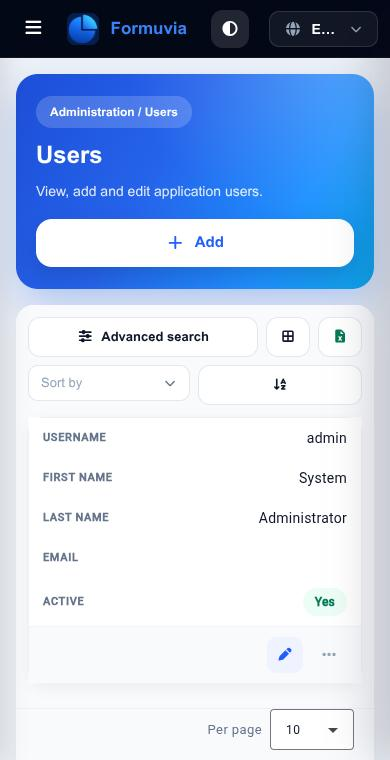
Below roughly 900 px the table turns into cards — one card per record, each value with its column name beside it, and the row's actions at the bottom of the card.
Column headers disappear along with the table layout, so the two things that lived in them move:
- sorting — choose the column and the direction in the toolbar above the list
- filtering — use Advanced search
Everything else, including editing a cell and the ⋯ menu, works as it does on a computer.