
Administration
The screens under Administration decide who gets into Formuvia and what they may do once inside — Users and Roles — and hold the settings of the application itself, such as the mail servers it sends through.
Users and roles are ordinary table screens, so everything in Working with tables — filtering, sorting, history, Excel export — applies to them as well.
Roles
A role is a name for a permission. It has a code, which is what the application checks against, and a description, which is what people read when assigning it.
Two roles exist from the start:
admin | administration — implicitly holds every other role |
user | an ordinary user |
You add your own as the application grows. In Model each table gets four separate roles — view, add, edit, delete — and those are chosen from this list, so it pays to name them after what they allow: invoice_view, invoice_edit.
Deleting a role
Deleting a role also removes it from every user who has it. Formuvia says so before doing it.
Users
A user has sign-in and contact details and a set of roles.
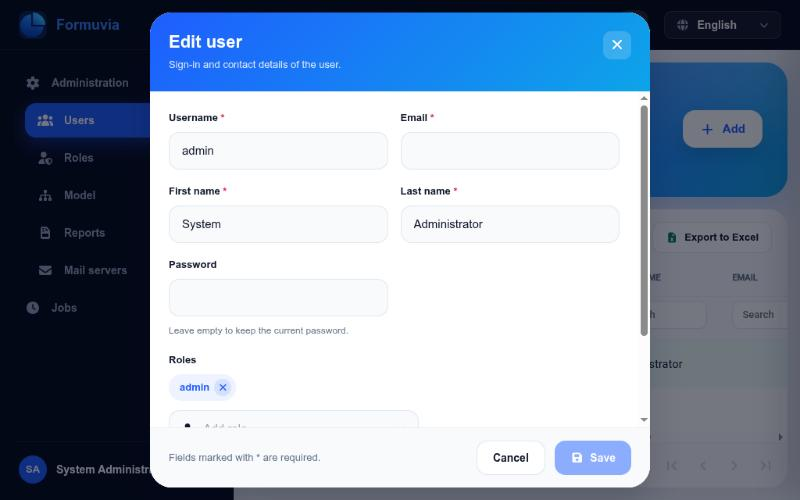
Add opens the form for a new account. When you edit an existing one, the password field behaves differently from the rest: leave it empty and the current password is kept. Fill it in only when you really mean to set a new one.
Passwords are never sent back to the browser, not even to an administrator — the field is always empty when the form opens.
Assigning roles
At the bottom of the user form the roles appear as chips. Add one from the list, remove one with the × on its chip. A user can have as many as they need.
What a user sees follows directly from this: the menu is built from their roles, and so is what they may do inside each table. Someone with invoice_view but not invoice_delete opens invoices and finds no Delete in the ⋯ menu.
Since admin implicitly holds every role, an administrator sees everything, and you do not need to assign them anything else.
Mail servers
Administration / Mail servers keeps the servers the application sends mail through: the test mail from the row menu, and everything a job of a report sends by itself — the report, and the word about a job that did not go through. It is an ordinary table screen, so searching, sorting, pages, history and Excel export work on it as everywhere else.
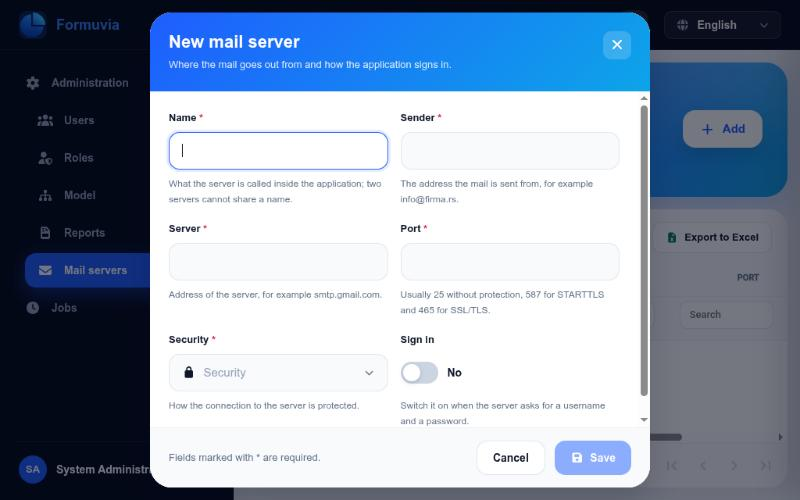
Add asks for:
- Name — what the server is called inside Formuvia. Two servers cannot carry the same name.
- Sender — the address the mail goes out from, for example
info@firma.rs. - Server — the address of the mail server, for example
smtp.gmail.com. - Port — the number the server listens on: usually 25 without protection, 587 for STARTTLS and 465 for SSL/TLS.
- Security — how the connection is protected: No protection, STARTTLS or SSL/TLS.
- Sign in — switch it on when the server asks for a user. The username and the password are then asked for as well.
The password is written only: it never comes back out of the server, so the field is empty every time the form is opened. Left empty while editing, the stored password stays as it is; it has to be entered when a server starts signing in. Switching Sign in off clears both the username and the password.
Trying a server out
The ⋯ menu of a row holds Test mail. It asks for one address and the application sends a single mail through that server. If the mail arrives, the settings are right.
If the server does not take it, the red message carries what the server itself said — most often it comes down to a wrong port, the wrong kind of protection, or a username and a password the server did not accept. Every try is written down on the server, the ones that worked as well as the ones that did not, together with the reason.
Changing your own password
Anyone can change their own password without an administrator: click your name at the bottom of the menu and choose Change password. The new password is entered twice and the two must match.
Sessions
Signing in sets a session that is refreshed while you work. When it does expire, Formuvia takes you back to the sign-in page; anything already saved is safe.
How long a session lasts is a server setting, chosen during installation.