
Signing in
Open the address where Formuvia is running and enter your username and password. The eye icon next to the password field shows what you typed, in case a long password went in wrong.
If your session expires while you are working, Formuvia takes you back to the sign-in page. Nothing you had already saved is lost — only work left unsaved in an open dialog.
First sign-in
The first account is admin, with the password chosen during installation. Change it right away, under Change your password.
Finding your way around
The menu is on the left. What it contains depends on the roles you have — you only see what you are allowed to open. On a phone the menu is hidden; open it with the button in the top bar and it slides in over the page. Entries that hold other entries start folded, so the whole menu is read at once; a click on one unfolds it, and the group holding the page you are on unfolds on its own.
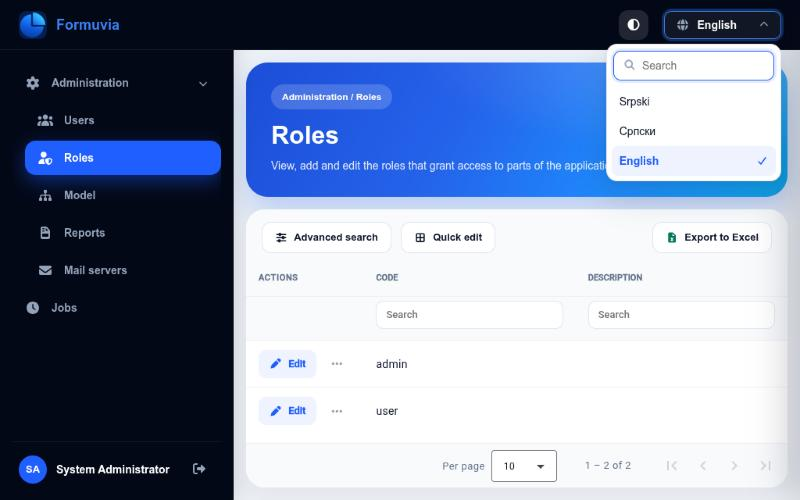
The top bar holds the language and the theme, and the name of the page you are on.
Your name is at the bottom of the menu. Click it to change your password; the icon next to it signs you out.
Help on every screen
You do not have to keep this guide open next to the application — the application points the way itself:
- The first screen after signing in says where to start. An administrator gets the first steps of setting Formuvia up, in the order they depend on each other — roles, users, tables, the mail server, reports — each with Open, which leads to its screen. Everyone else gets a short word on how a table works.
- A short guide sits at the top of the main screens of the administration, the model, the form design and the jobs: a few steps, or what each button does. It is open while the screen is still empty — no table in the model yet, no mail server, no job — and folded into one line once there is something in it, so it does not take the room of the list. A click on that line opens or folds it, and your choice is remembered in the browser.
- Read in the guide, under the title of every screen, opens the page of this guide about that screen, in a new tab and in your language. Both Serbian scripts lead to the Serbian guide, which is written in the Latin script.
Language
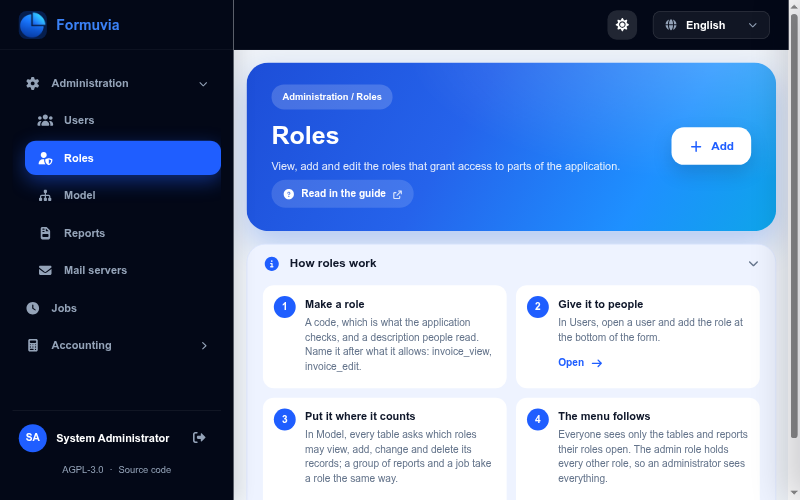
Formuvia speaks three languages, chosen in the top bar:
| English | en-US |
| Srpski | Serbian, Latin script |
| Српски | Serbian, Cyrillic script |
The choice is remembered in your browser, so the next time you open Formuvia it comes up in the same language. It applies to everything: buttons, column headers, menu items and error messages alike.
Light and dark theme
The button next to the language switches between three states, in this order:
- Light theme
- Dark theme
- Follow the system — Formuvia takes whatever your computer or phone is set to, and changes with it
This is remembered per browser as well. It changes nothing about your data — only how the screen looks.
Change your password
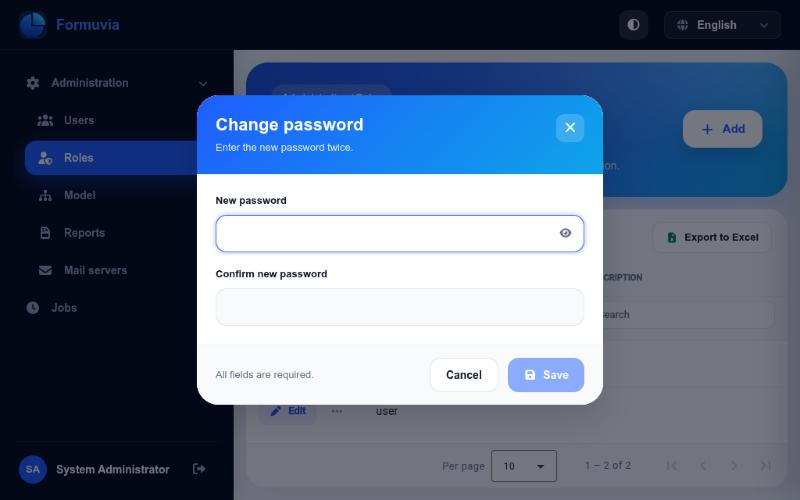
Click your name at the bottom of the menu and choose Change password. Enter the new password twice; the two entries must match or the dialog will not let you save.
On a phone
Formuvia is built to be used on a phone, not merely to fit on one:
- the menu slides in over the page instead of taking a third of the screen
- tables are shown as cards — one card per row, each value with its column name next to it
- because there are no column headers to click, you choose the sort column in the toolbar above the list, and filter through Advanced search
- dialogs scroll inside themselves instead of running off the screen
Everything you can do on a computer you can do on a phone; some of it just sits in a different place.
Licence and source code
At the bottom of the menu, and under the sign in card, stand two small links: AGPL-3.0 and Source code.
Formuvia is free software under the GNU Affero General Public License, version 3. You may run it for any purpose, business included, study how it works and change it. The licence asks one thing in return: whoever changes Formuvia and lets other people use that changed version over a network has to offer those people the source of their version.
The second link is that offer. It leads to the source of the version you are using, so in an installation that somebody has changed it leads to the source of that changed version. Whoever installed Formuvia sets the address behind it; it is one setting, described in the README of the project.